
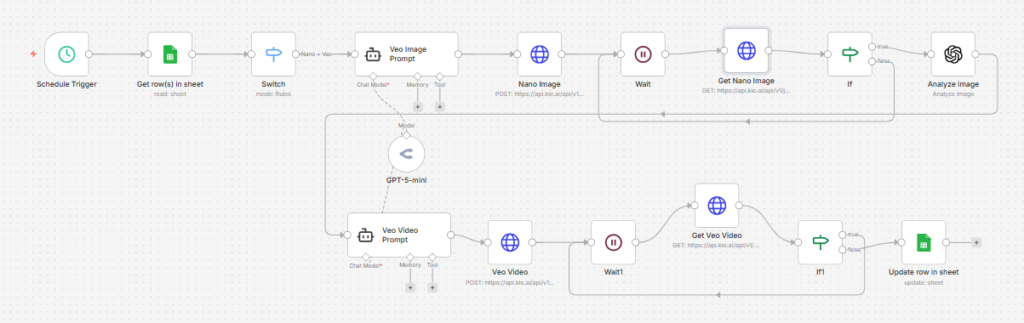
This n8n workflow automates the creation of UGC-style ad creatives from a Google Sheet, using AI to generate both a branded reference image and a short-form selfie video.
It is designed for teams producing ad variations at scale: instead of manually briefing creators or prompting models one by one, you simply mark a row as Ready in Google Sheets, and the workflow generates a realistic UGC image, analyzes it for consistency, creates a matching Veo video prompt, renders the final video, and writes the result back to the sheet.
Use cases
This workflow is ideal for marketers, creative strategists, and media buyers who want to produce UGC-style ad assets faster.
It’s especially useful if you:
- Manage multiple ad concepts in a content sheet
- Want to turn product + ICP + feature notes into ad-ready video creatives
- Need a repeatable workflow for generating creative variations daily
- Want to combine image generation and video generation into one automated pipeline
- Use AI to test different angles, settings, and personas for paid ads
Good to know
- This workflow depends on Google Sheets as the content queue and control center.
- It uses OpenRouter / GPT-5-mini to generate prompts for both image and video creation.
- It uses Kie.AI endpoints for both Nano Banana image generation/editing and Veo video generation.
- It uses OpenAI Vision to analyze the generated reference image before creating the final video prompt.
- The workflow includes polling/wait steps for both image and video generation, since these assets are not returned instantly.
- API usage across OpenRouter, OpenAI, and Kie.AI will incur costs depending on volume.
How it works
This workflow runs on a schedule and processes one approved row from a Google Sheet.
1. Trigger and row selection
- A Schedule Trigger starts the workflow automatically.
- The workflow searches the Google Sheet for the first row where Status = Ready.
- A Switch checks the selected model type and routes rows that match Nano + Veo 3.1 into the correct generation flow.
2. AI generates a UGC image prompt
- The Veo Image Prompt agent creates a detailed prompt for a hyper-realistic selfie-style product image.
- It uses inputs from the sheet such as:
- Product
- Video setting
The prompt is designed to keep the product visually accurate while generating a natural-looking influencer-style image.
3. Nano Banana creates the reference image
- The prompt is sent to the Nano Image HTTP request node.
- Nano Banana generates a 9:16 product selfie image using the source product photo.
- A Wait step pauses the workflow, then Get Nano Image checks the generation result.
- An If node loops until the image job finishes successfully.
4. OpenAI analyzes the generated image
- Once the image is ready, the Analyze image node describes:
- the human subject
- the environment
- what the person is holding
This creates a structured description of the visual output, which is then fed into the next prompt-generation step for consistency.
5. AI creates the Veo video prompt
- The Veo Video Prompt agent combines:
- Product
- ICP
- Product features
- Video setting
- Reference image description
It generates a prompt for an 8-second vertical UGC selfie video, designed to feel natural, handheld, and creator-style while matching the previously generated image.
6. Veo renders the final video
- The workflow sends the generated prompt and image reference to the Veo Video node.
- Veo generates the final 9:16 short-form video.
- A second wait-and-poll loop checks the task status via Get Veo Video.
- The If1 node keeps checking until the video is complete.
7. The sheet is updated with the finished asset
- Once the video is ready, Update row in sheet writes the result back to Google Sheets.
- The workflow updates:
- Status →
Finished - Finished Video → generated video URL
- Status →
This turns the sheet into both the job queue and the delivery log.
How to use
- Copy the Google Sheet template and connect your own sheet to the Google Sheets nodes.
- Fill in rows with:
- Product
- ICP
- Product Features
- Video Setting
- Model
- Set Status to
Ready. - Let the scheduled workflow run, or trigger it manually for testing.
- Once complete, check the Finished Video column for the output URL.
The workflow is currently built to process rows using the Nano + Veo 3.1 path.
Requirements
- A Google account for Google Sheets
- A Google Sheet formatted as the workflow expects
- An OpenRouter account for the GPT model
- A Kie.AI account for Nano Banana and Veo generation
- An OpenAI account for image analysis
- Correct credentials configured in all Google Sheets, HTTP Request, and AI nodes
Customising this workflow
You can extend this workflow in several useful ways:
- Add more model paths in the Switch node for other creative-generation stacks
- Generate multiple image variations before selecting one for video
- Add approval steps before the video generation stage
- Store prompts and outputs in Airtable, Notion, or a database
- Generate multiple hooks or personas from a single product row
- Add automatic export to ad libraries, cloud storage, or creative review tools
- Mark failed jobs separately in the sheet instead of continuing to poll indefinitely